
Yes! Spark Shipping can update your prices.
Pricing automation is a powerful site-wide feature that allows you to add a formula to markup the vendor cost and push the final price to your store. This ensures your margins are protected while keeping your prices competitive.
(Vendor Cost + Vendor Markup) + Site Markup = Final PriceThere are 3 main components to this automation:
1. Default Site Settings: Your global safety net. If no other rules apply, these settings take charge.
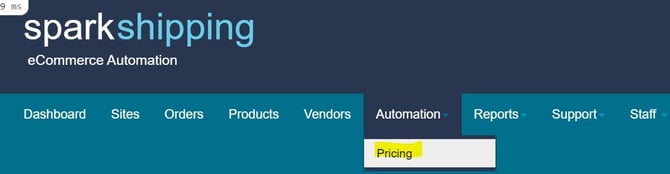
📍 Configuration Path:Automation > Pricing
Key Parameters:
- Tolerance Controls
- Price Increase %: Only update if the new price is X% higher than the old one.
- Price Decrease %: Only update if the new price is X% lower than the old one.
- Auto-approve Zero Price: Check this to allow updates even if the vendor sends a $0.00 price (use with caution!).
- Markups
- Default Markup %: A percentage added to the vendor cost (e.g.,
35%). - Default Markup Value: A fixed dollar amount added (e.g.,
$5.00). - Apply per Unit: If checked, the markup value is multiplied by the package quantity (e.g., a 4-pack gets 4x the markup).
- Default Markup %: A percentage added to the vendor cost (e.g.,
- MSRP Settings
- Do not price below/above MSRP: Ensures your calculated price respects the manufacturer's suggested retail price window.
- MAP Enforcement
- Enforce MAP: Never sell below MAP (Floor).
- MAP Overrides Suggested: If MAP exists, use it as the price (Ceiling/Fixed).
- Ignore Tolerance for MAP: Forces the update if the price matches MAP, ignoring your tolerance % rules.
- Pricing Rounding
- Rounding Increment: Always rounds up to this decimal.
- Example:
0.99turns $6.89 → $6.99 - Example:
0.00turns $6.89 → $7.00
- Example:
- Rounding Increment: Always rounds up to this decimal.
2. Pricing Tiers
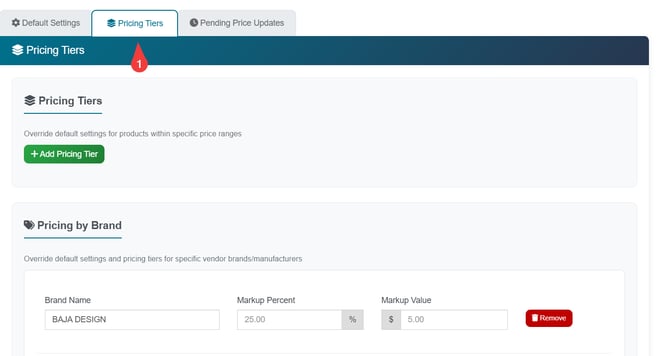
📍 Configuration Path:
Located within the Pricing Automation section.
How it works:
Spark Shipping checks the cost of the product. If it falls into a tier, it ignores the Default Site Settings and uses the Tier settings instead.
Example Tier Structure:
| Tier Name | Cost Range | Markup Strategy |
|---|---|---|
| Low Value | $0 - $50 | 50% + $2.00 |
| Mid Value | $50 - $200 | 30% |
| High Value | $200+ | 15% |
3. Vendor Price Settings
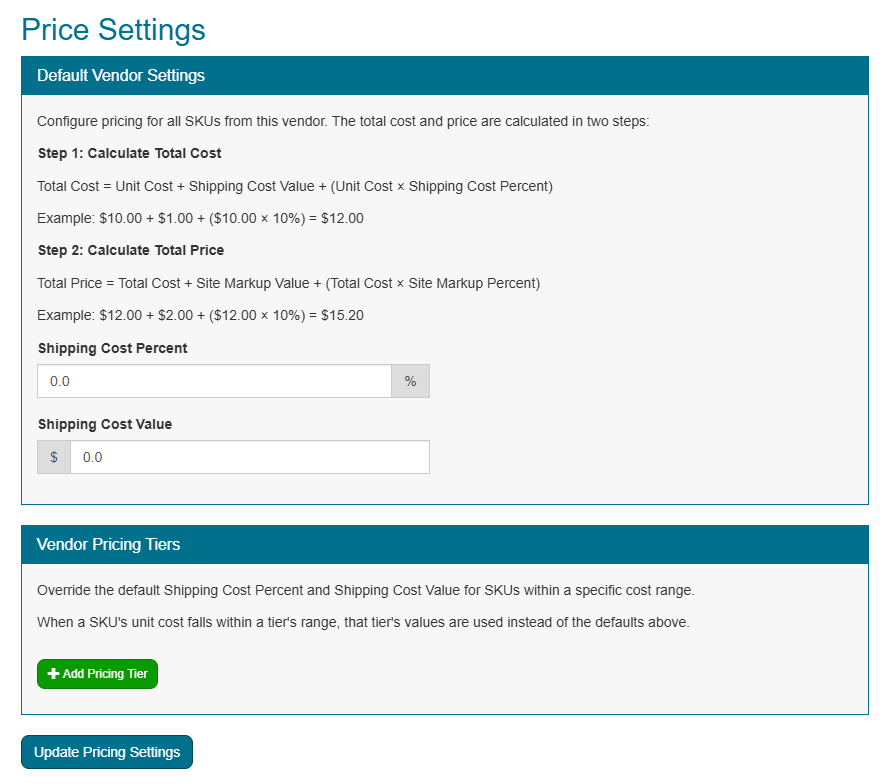
Where to add vendor-specific costs like dropship fees.
📍 Configuration Path: Vendors > select Vendor > Price Settings
How it works: Vendor pricing adjusts the Total Cost before your site markup is applied. There are two fields: Shipping Cost Percent and Shipping Cost Value. These are not a replacement for site settings they feed into Step 1 of the formula, and your site markup runs on the result in Step 2.
📝 Real World Example:
- Scenario: SpeedyParts charges a $3 dropship fee per order. You add $3.00 to the Shipping Cost Value for that vendor.
- The Math:
Total Cost = Unit Cost + $3.00, then site markup applies to that new total. - Result: The dropship fee is baked into cost before your margin is calculated, so your markup % still reflects actual profit.
⚠️ Important Notes
- MAP pricing will not be observed if site Automation Pricing is not enabled; you must have price automation on if you want MAP-enforced.
- Site price level settings must be set FIRST before vendor level price settings are set; vendor price settings add on to site level price settings.
- These settings are global across your entire site and will always be enforced.