
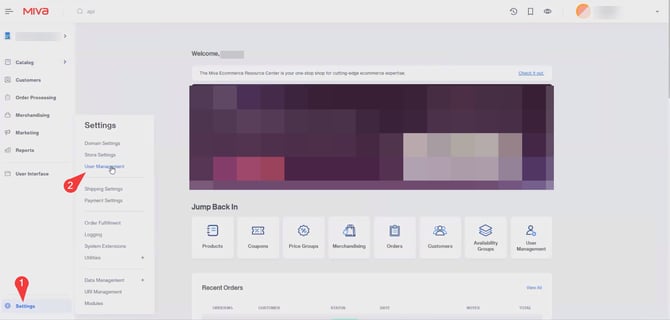
1.Go to your Miva Settings > Users Management > API Tokens, and click Add API Token.
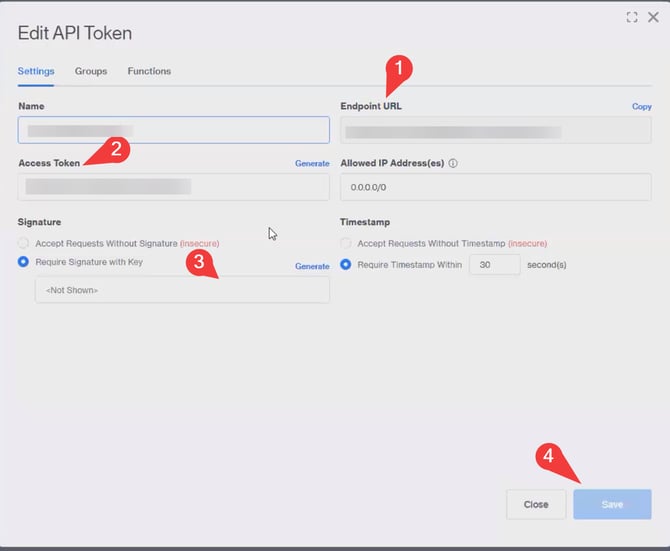
2.Your Access Token, also known as your API key, will need to be copied and pasted into the appropriate field. Next, generate your signature sometimes referred to as a secret using the tool provided here; once created, save it and copy it over as well. Be sure to include your endpoint URL, making sure to copy it exactly as shown, with no extra spaces in your SparkShipping Credentials page.
Copy the following details into the Spark Shipping Credentials page:
1. Endpoint URL
2. Access Token (API Key)
3. Signature (Secret you generate and save on the API token page)
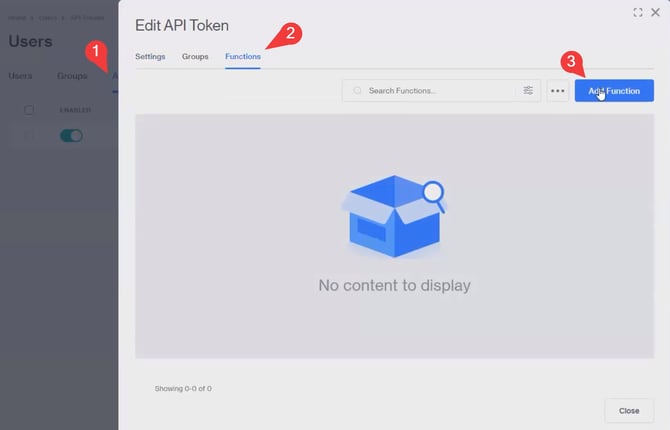
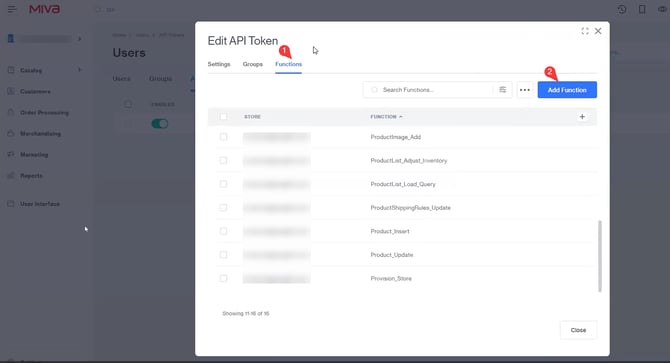
3.Select your new ShipStation API Token from your list of Users, then click Functions. (see image below for clarity)You'll have to add each of the bellow functions manually 1-by-1 by selecting the add function for the API token user.
OrderList_Load_Query
Order_Load_ID
ProductList_Load_Query
Attribute_Insert
Product_Insert
ProductShippingRules_Update
ProductList_Adjust_Inventory
Product_Update
ProductImage_Add
Provision_Store
OrderShipmentList_Load_Query
OrderItemList_CreateShipment
OrderShipmentList_Update
CategoryList_Load_Query
ImageTypeList_Load_Query
Module:orderworkflow:QueueOrderList_Load_Query
4. The last piece you'll need is your store code which can be located Settings>Store Settings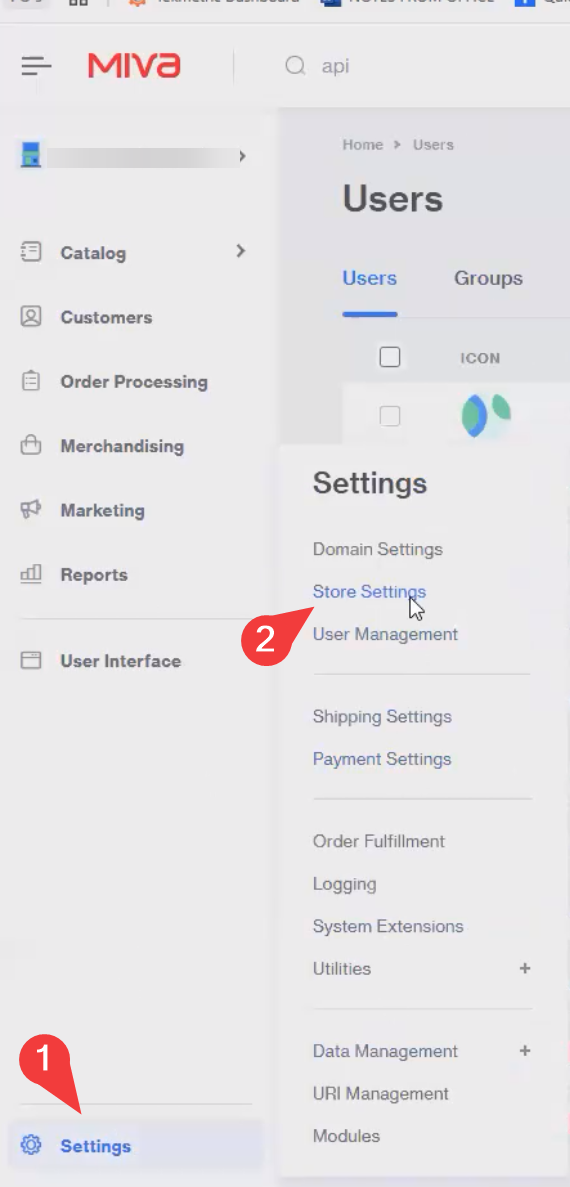
Below is the final piece to get a successful connection being your Store Code
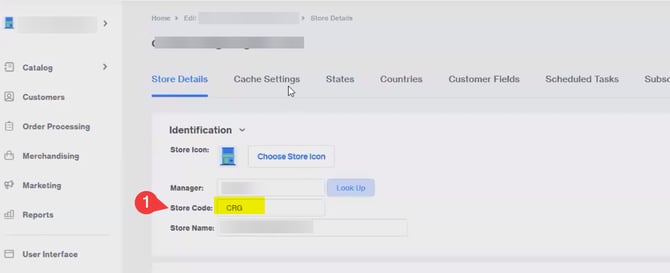
Test those credentials and you should expect a successful connection, if it fails you may have mix/matched various fields that are required to be adhered to specific keys so double check you've copied and pasted each segment properly.
Reminder before using Images:
-
- You need to create an ImageType on Miva for each image list your product has, from 1 up to 9. eg.: (Main) - (Image 1) - (Image 2).