
Connecting MotorState
MotorState sends your catalog and inventory to Spark Shipping as a scheduled file out of PriceGuidePro. You build the export once, MotorState uploads it to their FTP server on whatever interval you pick, and Spark Shipping reads it from there. The whole thing takes about fifteen minutes, most of which is waiting on one email.
Before you start
All you need to begin is your PriceGuidePro login, which comes from your MotorState representative. FTP delivery gets switched on inside PriceGuidePro itself.
Open the Data Export tool
Log into PriceGuidePro at pgp.motorstate.com. In the top navigation, open Business Tools and click Data Export.
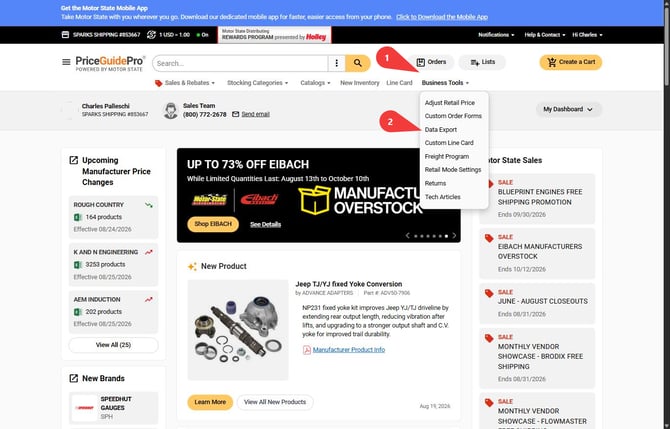
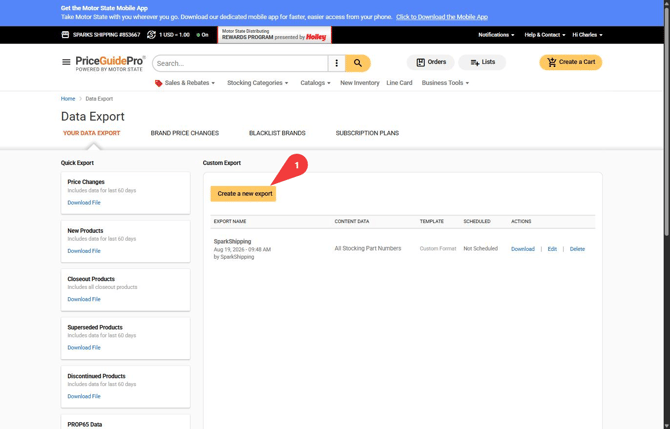
You land on the Your Data Export tab. The Quick Export list down the left side is for one-off downloads, so ignore it. Everything below happens in the Custom Export panel on the right.
Set up FTP delivery
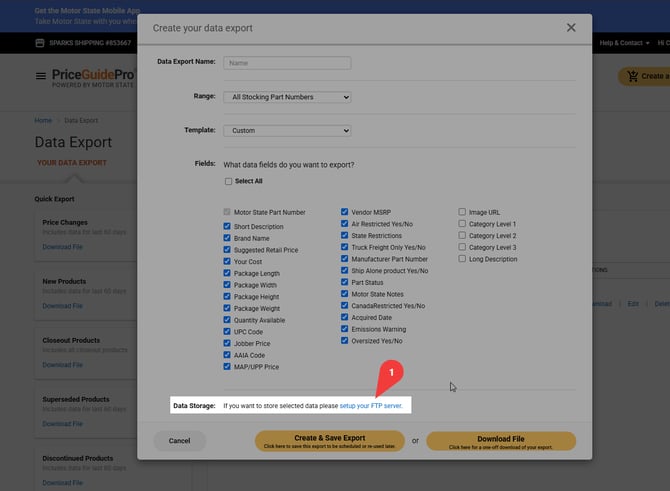
MotorState hosts the FTP for you and you can turn it on yourself. The link is easy to miss because it sits at the very bottom of the export dialog.
Click Create a new export, then look at Data Storage along the bottom edge. Click setup your FTP server.
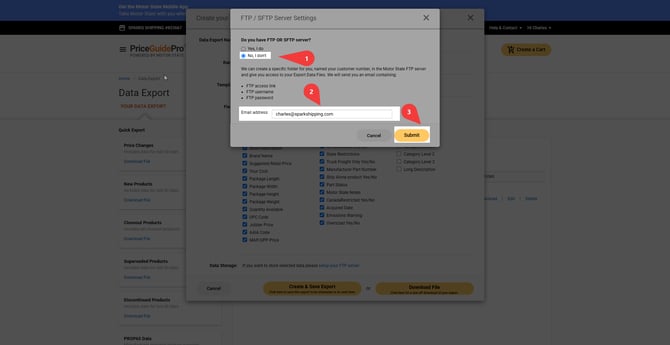
The FTP / SFTP Server Settings window asks "Do you have FTP OR SFTP server?" Choose No, I don't. That tells MotorState to create a folder for you on their own FTP server, named after your customer number, and to put your export files in it.
Enter the email address you want the credentials sent to and click Submit. MotorState emails back the FTP access link, the FTP username, and the FTP password.
Choose No, I don't even if you do happen to run an FTP server of your own. Files on MotorState's server is the setup we support, and it keeps one less system in the chain when a feed goes quiet and someone has to work out why.
Once those credentials arrive, reopen the export dialog and the FTP option will be there.
Here is a video to watch to help with the next steps, you'll need to wait for the FTP details to be emailed to you first before continuing.
Create the catalog export
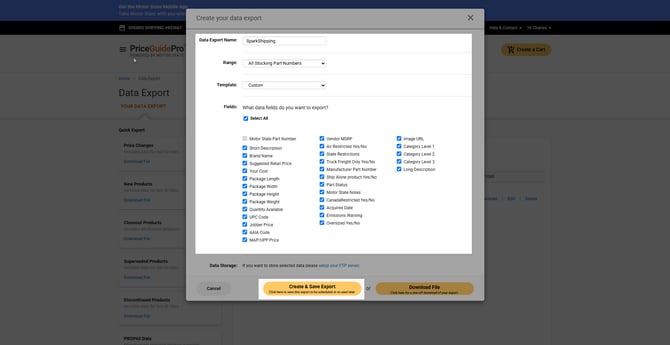
Click Create a new export and fill in the dialog:
- Data Export Name: SparkShipping. Type it exactly like that, one word, no spaces.
- Range: All Stocking Part Numbers. That is the full catalog.
- Template: Custom. Leave it on Custom. The Shopify, Big Commerce, and MS EDI templates use fixed column sets that drop fields we need.
- Fields: tick the Select All checkbox at the top of the field list.
Select All does more than it looks like it does. Five fields start out unchecked: Image URL, the three Category Level columns, and Long Description. Those are the ones you will miss later. Image URL feeds your product photos, the Category Level columns build out your category structure, and Long Description carries the full product copy. Motor State Part Number sits at the top of the list greyed out because it is always included and cannot be removed.
Set the delivery schedule
With FTP active on your account, an FTP option appears under Data Storage at the bottom of the dialog, along with an update interval. Turn it on and choose how often you want the file refreshed. Daily is plenty for a full catalog.
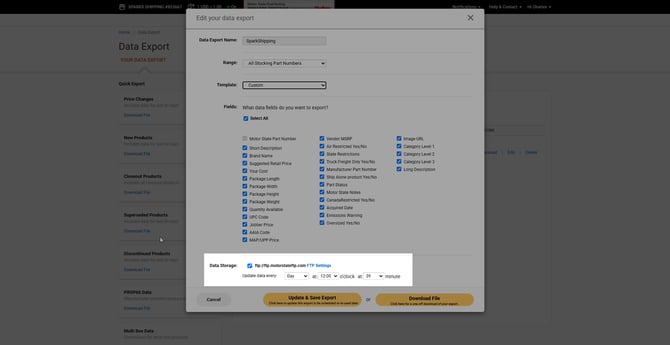
If Data Storage still reads "If you want to store selected data please setup your FTP server," your request has not come back yet. Check your email for the MotorState credentials, then reload the page.
With the FTP option set, click Create & Save Export. Do not use Download File. That gives you a one-off copy on your computer and schedules nothing.
Send your details to Spark Shipping
In Spark Shipping, add MotorState as a vendor if you have not already. Open the vendor, go to Credentials, and enter what MotorState sent. The FTP details go in the FTP fields, and if MotorState included an API key, that goes in the API key field. Each value has its own spot on the form, so check that everything lands where it belongs before you save.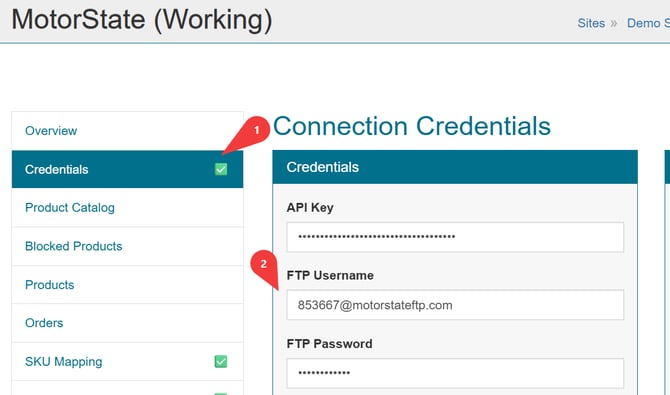
That first pull is large. Nothing shows up in your Spark Shipping catalog until it finishes, so give it time before you go looking for products.
Common snags
The template got switched off Custom.
The prebuilt Shopify and Big Commerce formats look convenient and will cost you columns. Set it back to Custom and re-tick Select All.
Fields are missing.
If products come in with no images or no categories, the Select All checkbox was probably missed. Edit the export, tick it, and save.
There is no FTP option in the dialog.
FTP has not been set up on your account yet, or the credentials email has not landed. Open the export dialog, click setup your FTP server under Data Storage, answer No, I don't, and submit your email address.
You answered "Yes, I do" by mistake.
That points the export at an FTP server you are expected to supply. Go back through setup your FTP server and choose No, I don't so MotorState hosts it. You