
Before you can connect Walmart to your SparkShipping profile, you need to add it first as a site in your SparkShipping Profile. Please follow the knowledge base article linked below to complete this step. Once Walmart is added, proceed to the Walmart credentials page in SparkShipping to generate the necessary credentials as outlined in this article.
https://kb.sparkshipping.com/adding-deleting-sites
On the Walmart credentials page, first choose your Market: United States or Canada.
United States: OAuth 2.0 (recommended)
Save the site, then click Connect with Walmart OAuth 2.0. Sign in to Walmart in the new tab and approve access for Spark Shipping. When it is done the credentials page shows "OAuth 2.0 is connected and active."
Canada, or United States accounts that cannot use OAuth 2.0: API keys
- Go to Walmart's developer portal and select marketplace
- Look for your Production Keys
- Click "Add New Key for Solution Provider"
- Select "SparkShipping" from the drop-down and next
- Grant access to the necessary endpoints:
- Feeds: Full Access
- Content: Full Access
- Items: Full Access
- Inventory: Full Access
- Price: Full Access
- Lag Time: Full Access
- Order: Full Access
- Returns: Full Access
- Reports: View Only
- Walmart Fulfillment Services: Full Access
- Account Profile: Full Access
- Shipping: Full Access
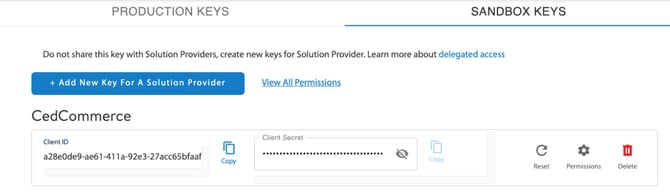
- Copy & Paste the Client ID and Client Secret into Spark Shipping: the fields are named Client ID and Client Secret for Canada, and API Key and API Secret for the United States. You can leave WM Service Name blank; Spark Shipping then uses "Walmart Marketplace". When copying client secret make sure that the field is visible otherwise the credentials will be invalid!
- Congratulations, your Walmart site is now connected to Spark Shipping! Your products will begin to download shortly.