
This setting changes how product dimensions and weights are rendered in the interface, including tables, product pages, and reports.
Note: This is a display preference only. It does not modify the actual values stored in the database. For example, if your data is stored in inches but you choose "Centimeters," Spark Shipping performs the conversion at the presentation layer while leaving the original data intact.
Locating Display Settings
These settings are managed on your individual User Profile.
-
Log in to your Spark Shipping account.
-
Navigate to your Profile page (located under your name or the "Me" section).
-
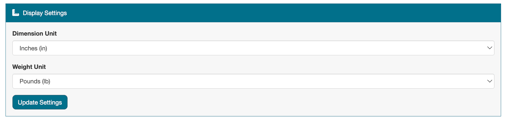
Scroll down to the Display Settings section.
-
Select your preferences from the dropdown menus:
-
Dimension Unit: Choose Inches (in) or Centimeters (cm).
-
Weight Unit: Choose Pounds (lb), Kilograms (kg), Ounces (oz), or Grams (g).
-
-
Click Update Settings to save your changes.
Interface Impact
Once saved, these units automatically update across the platform, affecting:
-
Product Dimensions
-
Package & Shipping Box Dimensions
-
Weight Displays in orders and inventory
-
Reporting Tables