
Many distributors provide very limited product details and no images, making it difficult to create compelling listings on your store.
Spark Shipping solves this by allowing you to seamlessly connect your SEMA Data API account to enrich the built-in catalogs of major automotive vendors like Keystone/Seawide and Meyer Distributing. By layering SEMA's industry-standard ACES and PIES data over your distributor feeds, you can pull in rich product descriptions, high-resolution images, and brand-specific details. This allows you to effortlessly push fully optimized product listings directly from Spark Shipping to your e-commerce channels.
Here is a step-by-step guide on how to set up the integration, along with crucial performance tips for a successful rollout.
Step-by-Step: Connecting SEMA Data to Your Vendors
Step 1: Request Brand Approvals inside SEMA Data
Before configuring anything in Spark Shipping, you must have an active SEMA Data reseller account. Spark Shipping can only pull product information for brands that have explicitly authorized your account.
- If you do not have a SEMA Data reseller account, learn how to sign up here. Subscribe to a SEMA Data plan that includes API access.
- Log into your SEMA portal at apps.semadata.org and request data access for the specific brands you intend to sell (Brand Data → Request Data).
- Wait for Manufacturer Approval: The individual parts manufacturers must review and approve your reseller data request.
💡 The Spark Shipping Connection: Once a manufacturer approves your request inside the SEMA portal, those approved brands will sync and populate directly inside Spark Shipping.
Step 2: Configure SEMA Data in Spark Shipping
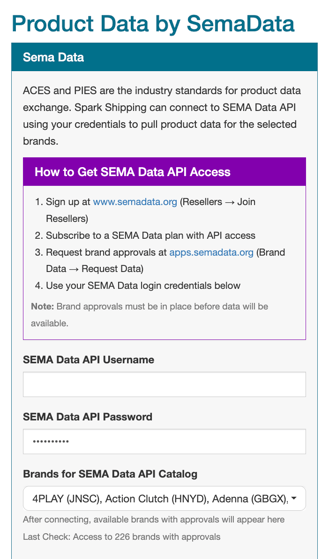
Plug your SEMA Data Reseller credentials into the Product Data by SemaData under your built-in vendor settings to begin the enrichment process.
Step 3: Set SEMA as the Default Data Provider
To ensure Spark Shipping prioritizes SEMA Data to enrich your products rather than relying on basic distributor data, verify it is set as your default option.
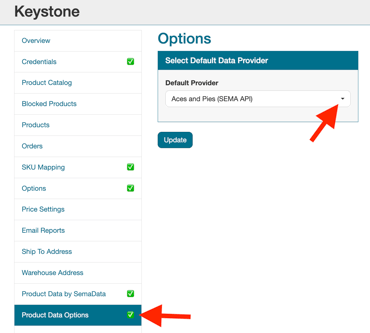
- In your vendor menu, click on Product Data Options.
- Under Default Provider, select Aces and Pies (SEMA API) from the dropdown menu.
- Click Update to finalize.
Pro-Tips for Best Success
Golden Rule: Turn ON "Skip Fitment Data" Initially
When first setting up your catalog, it is highly recommended to keep the "Skip Fitment Data" option enabled.
- Why is this important? The Problem: SEMA Data subscription plans strictly limit the number of API calls you can make per month. Fetching year/make/model fitment data requires a separate, individual API call for every single product.
- The Consequence: If you pull in all fitment data on your initial run, Spark Shipping will rapidly exhaust the majority of your included monthly SEMA subscription calls before your core product data is even fully pulled in. This will result in it taking a LONG time to get all your data as you have to wait for your SEMA monthly limits to reset.
- The Solution: Leave the box to skip fitment data checked. This allows you to build your core catalog (names, descriptions, images, SKUs) quickly so you can start selling. You can always safely uncheck this to fetch the granular fitment data later once your baseline data is established.
Still Need Help?
All connected and still having issues, or connected successfully and not seeing the data populate? Check out our article Why Am I Not Seeing SEMA Data in My Vendor Catalog? for a full breakdown of common issues and how to resolve them.