
Why This Happens
When a significant modification is made to an existing product, the shopping cart often treats the updated item as a new product. When this product syncs into Spark Shipping, if the original SKU is still active in the system, Spark Shipping automatically generates a variant SKU (often appending a number to the original SKU) to prevent conflicts.
For additional details on why this occurs, check out our guide on How to fix: My product SKUs have a strange number attached to them
Steps to Resolve Variant SKUs
- Export Mapping Files: Export both the
productskuandvendorskufields for a current mapping file. Do this for all of your associated vendors using Bulk Export Vendor Product Data
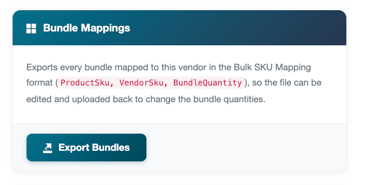
If you have BUNDLES please export the Bundle mappings as well
- Purge Vendors: Purge all individual vendors as well as the Default Vendor in Spark Shipping. Wait for this process to fully complete before proceeding to the next step. Not sure of the steps? Check out the KB Guide on How to purge vendors & default vendor
- Run a Sync (Refresh Products): Allow your site to sync overnight, or manually trigger a product refresh from your Dashboard. Ensure the refresh completes before moving forward. Reference: Product and Order Refresh
- Remap SKUs: Upload the exported SKU mapping files for each vendor to remap all new product variants using SKU Mapping - Bulk