
To connect Turn14 (also written Turn 14) to Shopify, use Spark Shipping, a dropship automation platform and registered Turn14 Integration Partner. Spark Shipping won the Turn14 Outstanding eCommerce Integrator Award. Install the Spark Shipping app in Shopify. In the Turn14 Dealer Portal, select Spark Shipping as your Integration Partner. Add Turn14 as a vendor in Spark Shipping and enter your Turn14 Client ID and Client Secret. Turn14 then approves one test order, and you switch to production. Spark Shipping then keeps Turn14 products, stock, prices, orders and tracking in sync with Shopify.
Turn14 must approve one test order before your store goes live, so plan for that wait. This guide shows every step, from the Turn14 Dealer Portal to your first live order. For an overview of features, see the Turn14 Shopify integration page.
Turn14 to Shopify setup at a glance
- Connect your Shopify store to Spark Shipping with the Spark Shipping app.
- In the Turn14 Dealer Portal, select Spark Shipping as your Integration Partner and request production access.
- In Spark Shipping, add Turn14 as a vendor.
- Enter your Turn14 API credentials and click Test Connection.
- Set your Turn14 options: warehouses, part numbers, costs and order holds.
- Map your shipping methods and choose who the order ships to.
- Set your pricing rules and turn on automatic price updates.
- Choose how orders are routed, and hold new orders until you go live.
- Add Turn14 products to Shopify from the Spark Shipping Product Catalog, or map the Turn14 products you already sell.
- Send a Turn14 test order, then switch to production.
- Confirm that tracking numbers reach Shopify.
After Step 11, Spark Shipping runs the connection for you. It updates stock and prices, sends new Shopify orders to Turn14, and sends tracking back to Shopify.
Before you start
Have these ready before you begin the setup:
- A Turn14 dealer account. You must be an approved Turn14 dealer with a login to the Turn14 Dealer Portal.
- A Turn14 administrator. Only an administrator on your Turn14 account can request API production access (Step 2).
- A Shopify store with admin access. You install the Spark Shipping app from the Shopify App Store, so you need permission to install apps.
- A Shopify store that can take orders. Set up your shipping zones and rates, a live payment gateway, and at least one store location. Create your main collections before you add products. See Pre-Onboarding Requirements.
- A Spark Shipping account. Turn14 is a prebuilt integration, and its setup is free on every plan. See Spark Shipping pricing. To see Spark Shipping with Turn14 before you sign up, book a demo.
Step 1: Connect your Shopify store to Spark Shipping
You connect Shopify with the Spark Shipping app from the Shopify App Store. The app gives Spark Shipping access to your products, inventory, orders and fulfillments.
- Go to the Spark Shipping app on the Shopify App Store and log in to your Shopify store. If you already have a Spark Shipping account, you can also start from Spark Shipping: go to Sites, open your Shopify site, click Credentials, then click Connect to Shopify.
- Click Install.
- Review the permissions, then click Install again.
- If you are new to Spark Shipping, Spark Shipping creates your account and asks you to choose a plan. If your Shopify store email already has a Spark Shipping account, log in to Spark Shipping to finish the install.
- Go to Sites, open your Shopify site, then click Credentials. On the Site Connection Credentials page, click Test Connection. A successful test also loads your Shopify collections and sales channels into Spark Shipping.
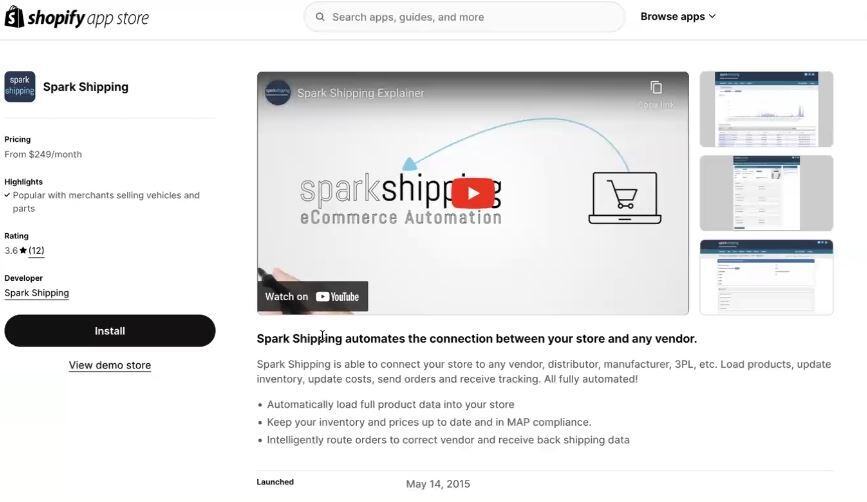
The Spark Shipping app on the Shopify App Store.
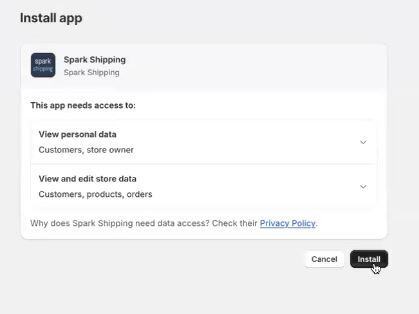
Review the permissions, then click Install.
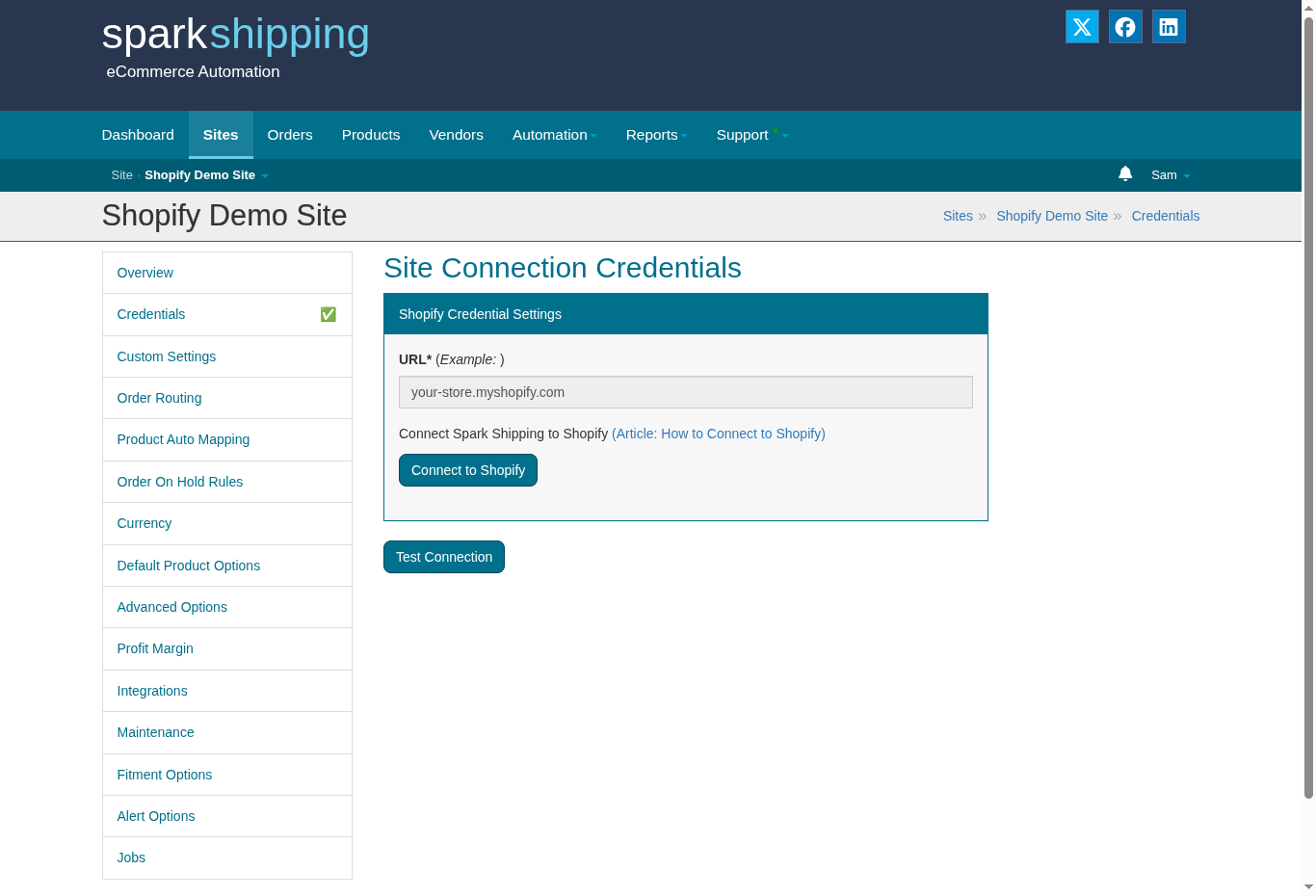
Sites > your Shopify site > Credentials: Connect to Shopify, then Test Connection.
Full guide: How to integrate with your Shopify store.
Step 2: Select Spark Shipping as your Integration Partner in Turn14
Turn14 gives API access only to the integrators that you approve. Do this step as a Turn14 administrator.
- Log in to the Turn14 Dealer Portal.
- Go to Settings & Data, then API (the API Settings page).
- Scroll to Integration Partners. Under Third Party Companies, select the Spark Shipping checkbox, then click Save.
- Click Request Production Access and agree to the terms. The page then shows the production and testing servers. Turn14 allows live orders from Spark Shipping only after it approves your test order (Step 10).
- In the API Credentials section, copy your Client ID and Client Secret. You need both in Step 4.
Full guide: How to get your Turn14 credentials.
Step 3: Add Turn14 as a vendor in Spark Shipping
- In Spark Shipping, click Vendors in the top menu.
- In the Integrations panel, click Expand All, then find the Turn14 card.
- Click Add Vendor. Spark Shipping shows "Vendor was successfully created." and opens the Turn14 Overview page.
- On the Overview page, find the Integration Settings panel. Make sure Update Inventory, Send Orders and Update Tracking are selected, then click Update Turn14.
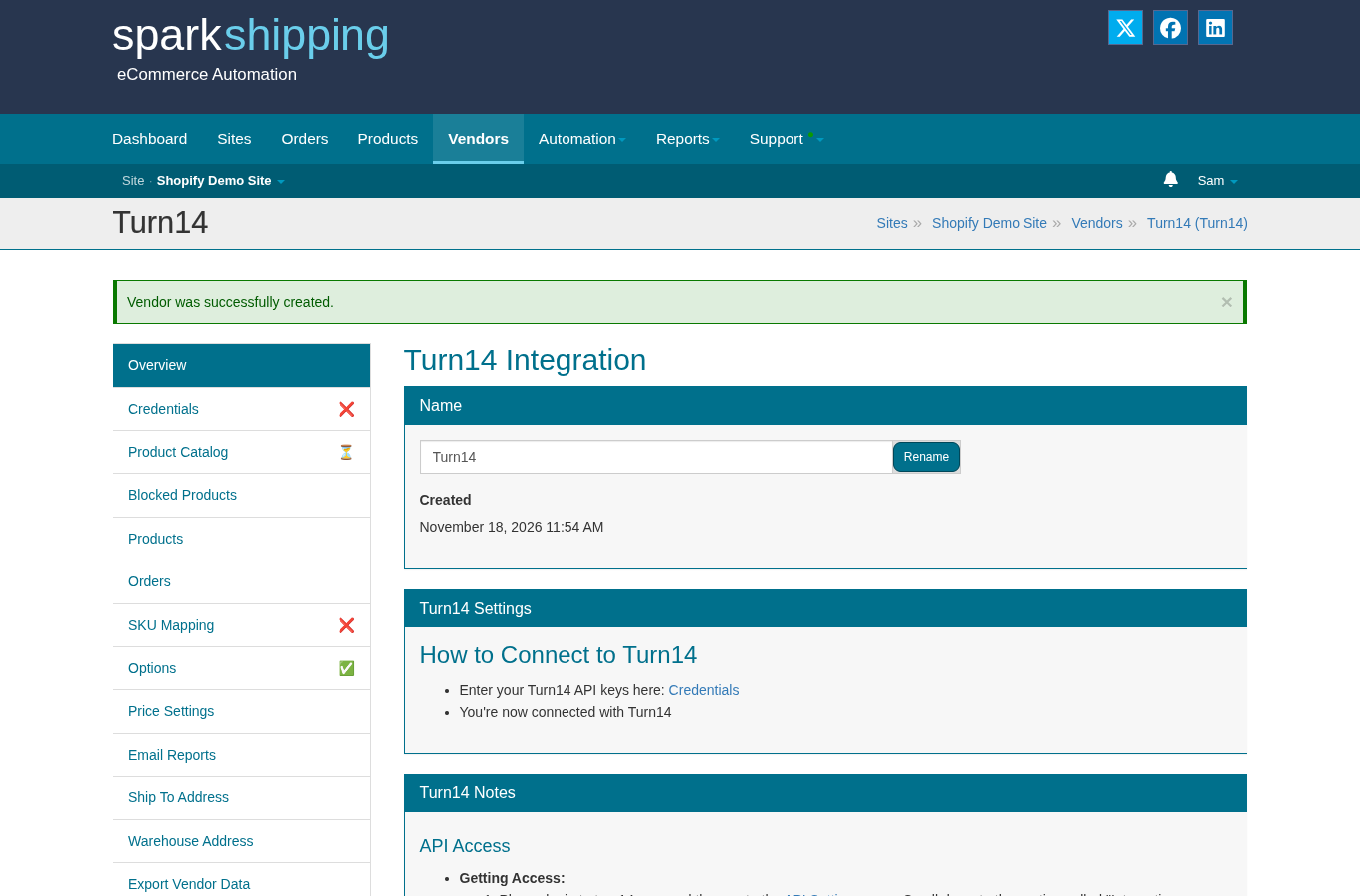
The Turn14 Overview page right after you click Add Vendor. The left menu holds every Turn14 setup page.
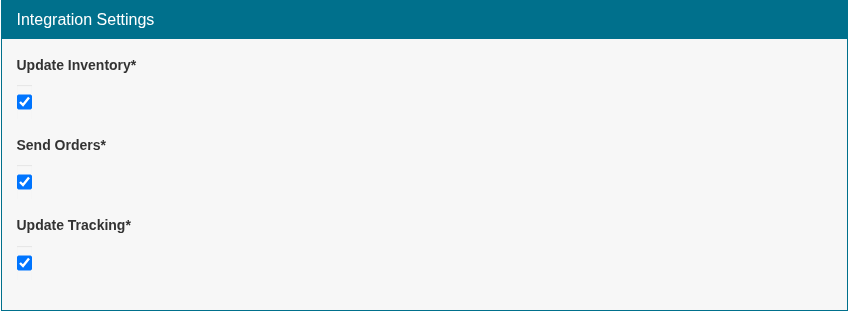
Integration Settings: keep Update Inventory, Send Orders and Update Tracking selected. All three are on by default.
The Turn14 Notes panel on the Overview page has a download link for the full list of Turn14 Product IDs. Turn14 uses these Product IDs as the vendor SKU. They do not show on the Turn14 dashboard.
Step 4: Enter your Turn14 API credentials and test the connection
- In Spark Shipping, go to Vendors, click Turn14, then click Credentials in the left menu.
- Paste your Turn14 Client ID into OAuth2 Client ID.
- Paste your Turn14 Client Secret into OAuth2 Client Secret.
- Set Turn14 Ordering Environment to testing. Turn14 requires one test order before it allows live orders (Step 10).
- Click Test Connection. Spark Shipping shows Connected! when the credentials work.
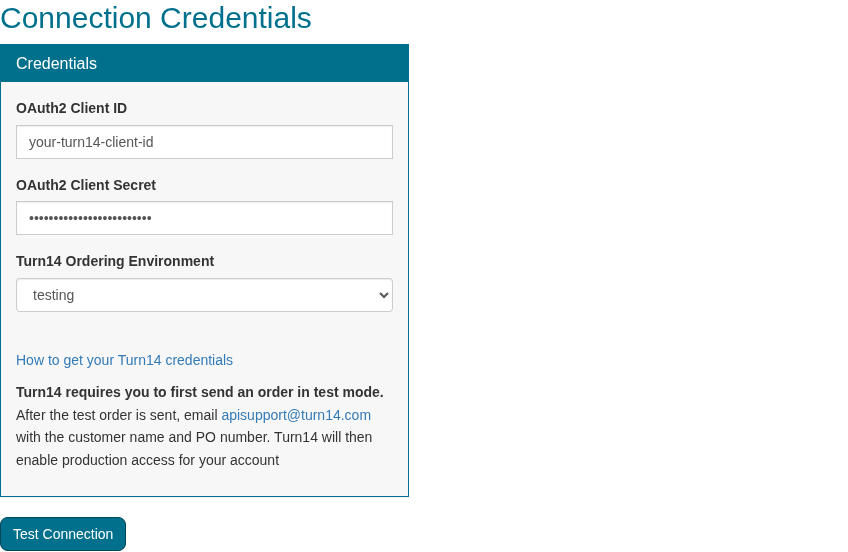
Vendors > Turn14 > Credentials. Leave Turn14 Ordering Environment on testing until Step 10.
After the first successful test, Spark Shipping starts the first catalog import within a few minutes. It also loads your Turn14 shipping methods. The Turn14 catalog is shared across Spark Shipping accounts, so most products show right away. Your own Turn14 dealer pricing downloads on the first update after you connect.
If you see Fail! Please check the connection REPORT logs., check that you copied the full Client ID and Client Secret, and that you completed Step 2.
Step 5: Set your Turn14 options in Spark Shipping
Go to Vendors > Turn14 > Options. Set these options, then click Update Turn14.
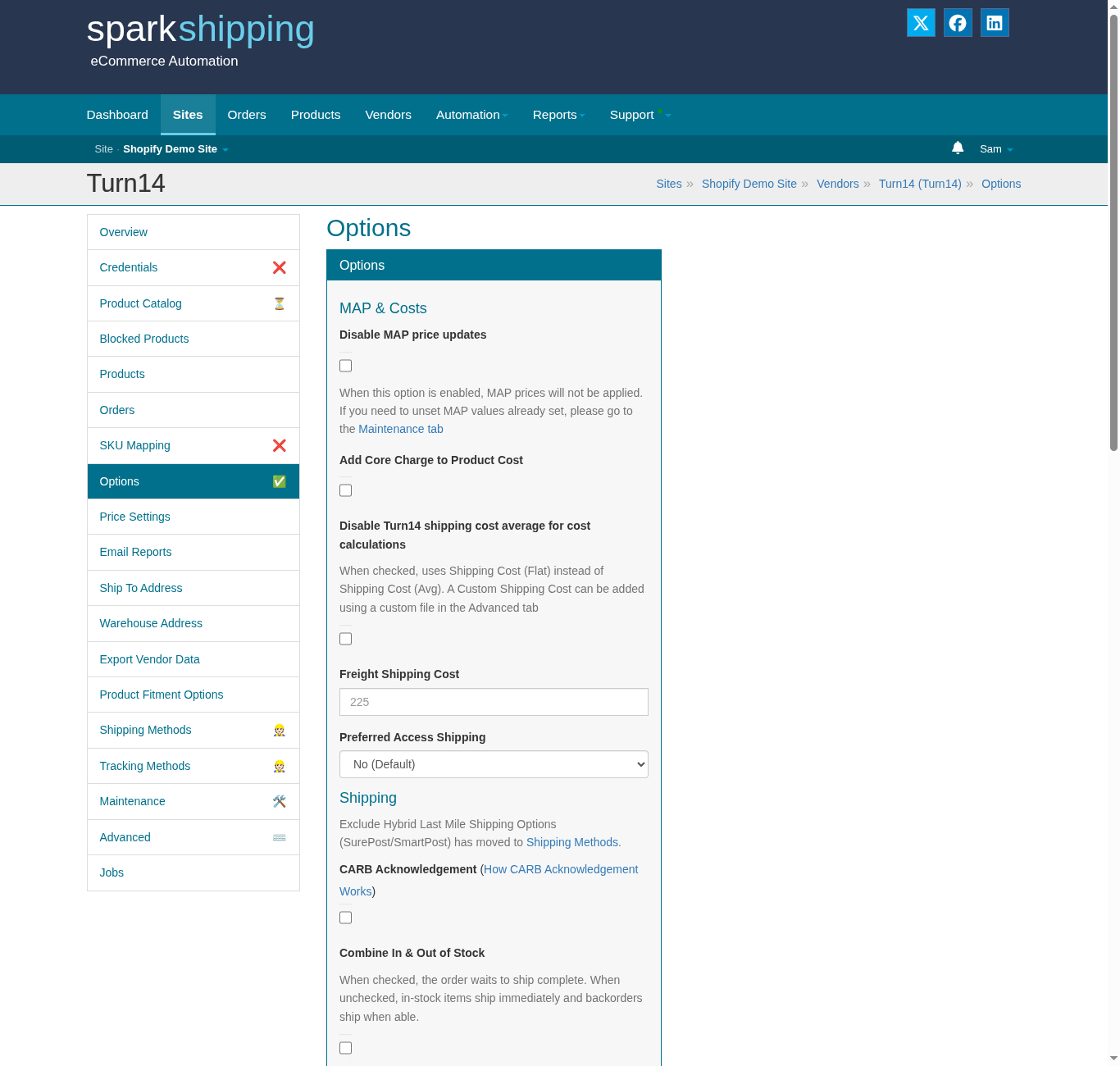
Vendors > Turn14 > Options: the MAP & Costs and Shipping sections.
MAP & Costs
- Disable MAP price updates: keep this clear. Spark Shipping then downloads Turn14 MAP prices, which Enforce MAP Pricing (Step 7) uses.
- Add Core Charge to Product Cost: select it to include Turn14 core charges in your product cost.
- Disable Turn14 shipping cost average for cost calculations: by default, Spark Shipping adds the Turn14 average ground shipping cost to each product cost. Select this to use a flat shipping cost instead.
- Freight Shipping Cost: the shipping cost added to freight (LTL) items. The default is $225.
- Preferred Access Shipping: select your Turn14 Preferred Access level (Corporate or Enterprise), if you have one.
Shipping
- CARB Acknowledgement: select it to sell parts that may need a CARB acknowledgement to California customers. See Turn14 CARB Acknowledgement.
- Combine In & Out of Stock: when selected, Turn14 holds the order and ships it complete. When clear, in-stock items ship now and backordered items ship later.
Product Settings
- Inventory Warehouses: choose which Turn14 warehouses count toward your stock: Hatfield, PA; Arlington, TX; Whiteland, IN; and Reno, NV. Leave it empty to use the total stock from all four.
- Part Number: choose Manufacturer Part Number or Vendor Part Number (Turn14).
- Zero out stock for Clearance Products and Zero out stock for Special Order Products: set these items to 0 in Shopify so you do not sell them.
- Zero out stock for Do Not Sell Products: on by default. It sets stock to 0 for items on your Turn14 Do Not Sell list.
- Manufacturer Direct Dropship: for brands with Manufacturer Direct Dropship in Turn14, include the manufacturer's stock in your total.
Order Holds and Signature
- Hold order if any of the items are out of stock
- Hold order if it contains more than 1 item
- Signature: require a signature on every delivery, or only above an order value you set.
Step 6: Map shipping methods and choose the ship-to address
Spark Shipping asks Turn14 for a shipping quote on each order, then orders with the method that you map. If you do not see Shipping Methods in the left menu, ask your account owner for access.
- Go to Vendors > Turn14 > Shipping Methods.
- Set a Default Shipping Method. Most stores choose a dynamic method:
- Dynamic - Best: the method Turn14 recommends, a balance of speed and cost.
- Dynamic - Cheapest: the lowest-cost method.
- Dynamic - FedEx Ground/Home Delivery
- Dynamic - 1/2/3 Day(s) - Cheapest and 1/2/3 Days - Service Level: for orders that must arrive within a number of days.
- To match your Shopify shipping rates, click Add Field. Enter the Shopify shipping method in Site Code and choose the Turn14 method in Vendor Code. You can also set a minimum and maximum weight.
- Under Shipping Method Advanced Options, choose what happens when the mapped method is not available: ship the cheapest method, ship the cheapest method that arrives as fast, or put the order in Error.
- Optional: select Exclude Hybrid Last Mile Shipping Options (SurePost/SmartPost) for more reliable but slightly more expensive methods.
- Click Update Turn14.
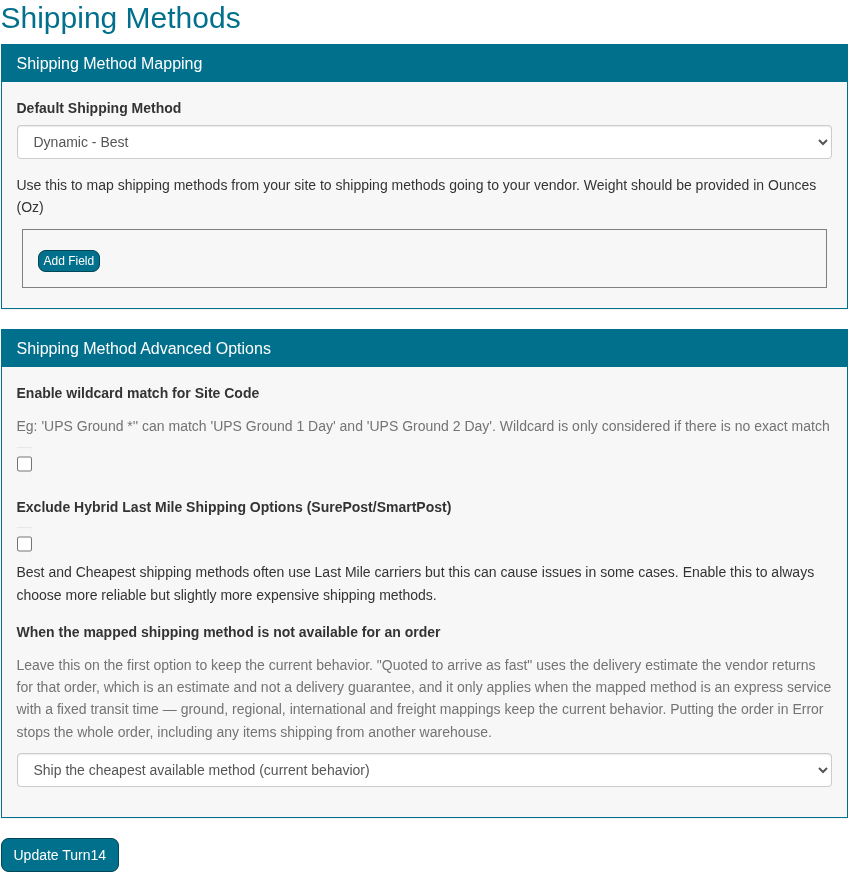
Vendors > Turn14 > Shipping Methods, with Dynamic - Best as the default method.
By default, Turn14 ships to your customer. To ship every Turn14 order to your own address instead, go to Vendors > Turn14 > Ship To Address. Select Enable Always Ship to Store Address and enter your store address.
Step 7: Set Shopify pricing rules for Turn14 products
Spark Shipping calculates a Shopify price for each Turn14 product from your Turn14 cost, the shipping cost and your markup.
- Go to Automation > Pricing, then click the Default Settings tab.
- Enter a Default Markup Percent and/or Default Markup Value.
- Optional: add Pricing Tiers for different markups by price band, or set Pricing by Brand.
- Under MAP, select Enforce MAP Pricing so you never price below the Turn14 MAP.
- Optional: under Pricing Rounding, select Enable and set the Rounding increment. For example, 0.99 makes prices end in .99.
- Under Automatic Updates, select Enable Automatic Updates, then set your Tolerance.
- Click Update.
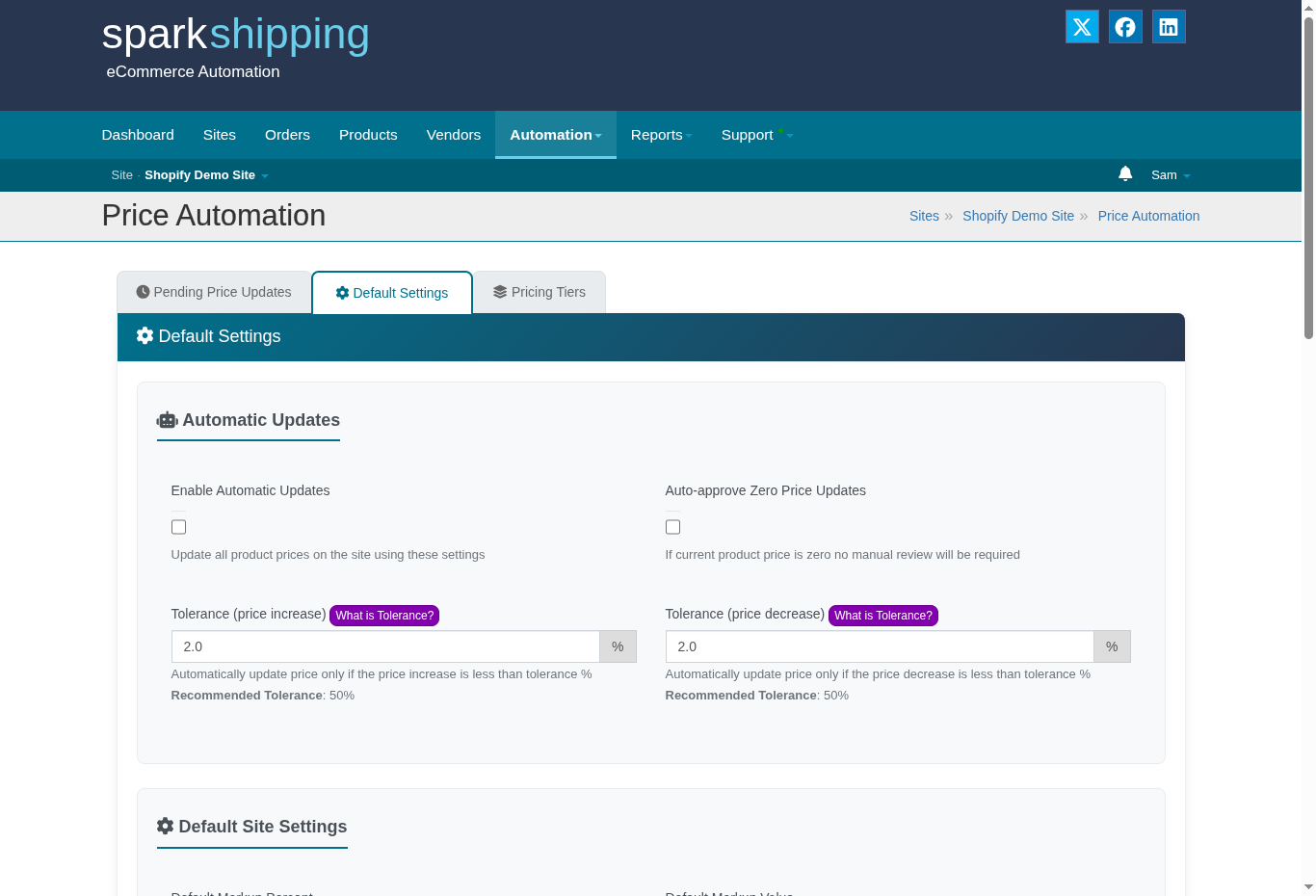
Automation > Pricing > Default Settings: Enable Automatic Updates and Tolerance.
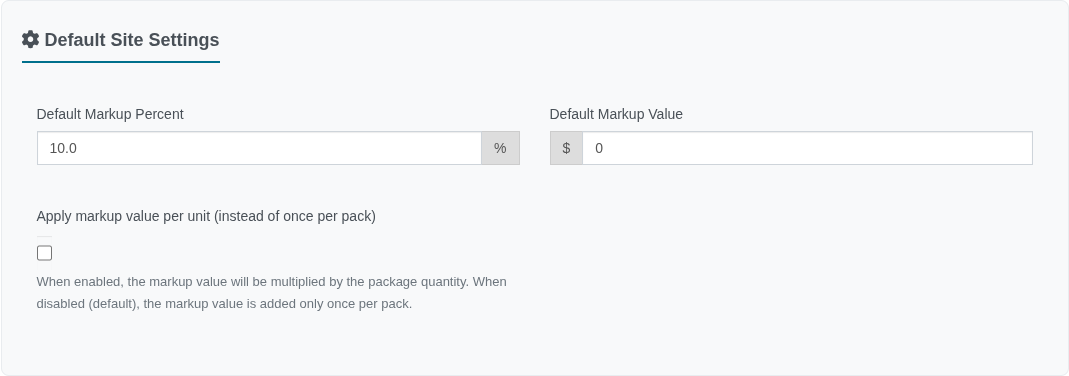
Set your Default Markup Percent and Default Markup Value on the same tab.
With automatic updates on, Spark Shipping sends price changes to Shopify about every 30 minutes. Review the Pending Price Updates tab for changes outside your tolerance. See How to turn on Automatic Pricing Updates.
To change only the Turn14 cost inputs, such as a flat shipping cost per unit, go to Vendors > Turn14 > Price Settings.
Step 8: Route Shopify orders to Turn14 and hold them until go-live
Spark Shipping gets new orders from Shopify and sends each Turn14 item to Turn14.
- Go to Sites, open your Shopify site, then click Order Routing.
- Choose an Order Routing Method. If Turn14 is your only vendor, keep Lowest Cost. If you also sell from other suppliers, choose the method that fits, such as Vendor Priority. See Routing Orders.
- Click Update Order Routing.
- To review orders before they go to Turn14, click Order On Hold Rules. Select Place new orders on hold, then choose Hold ALL new orders or Hold only orders that match conditions. Click Update Order on Hold Rules.
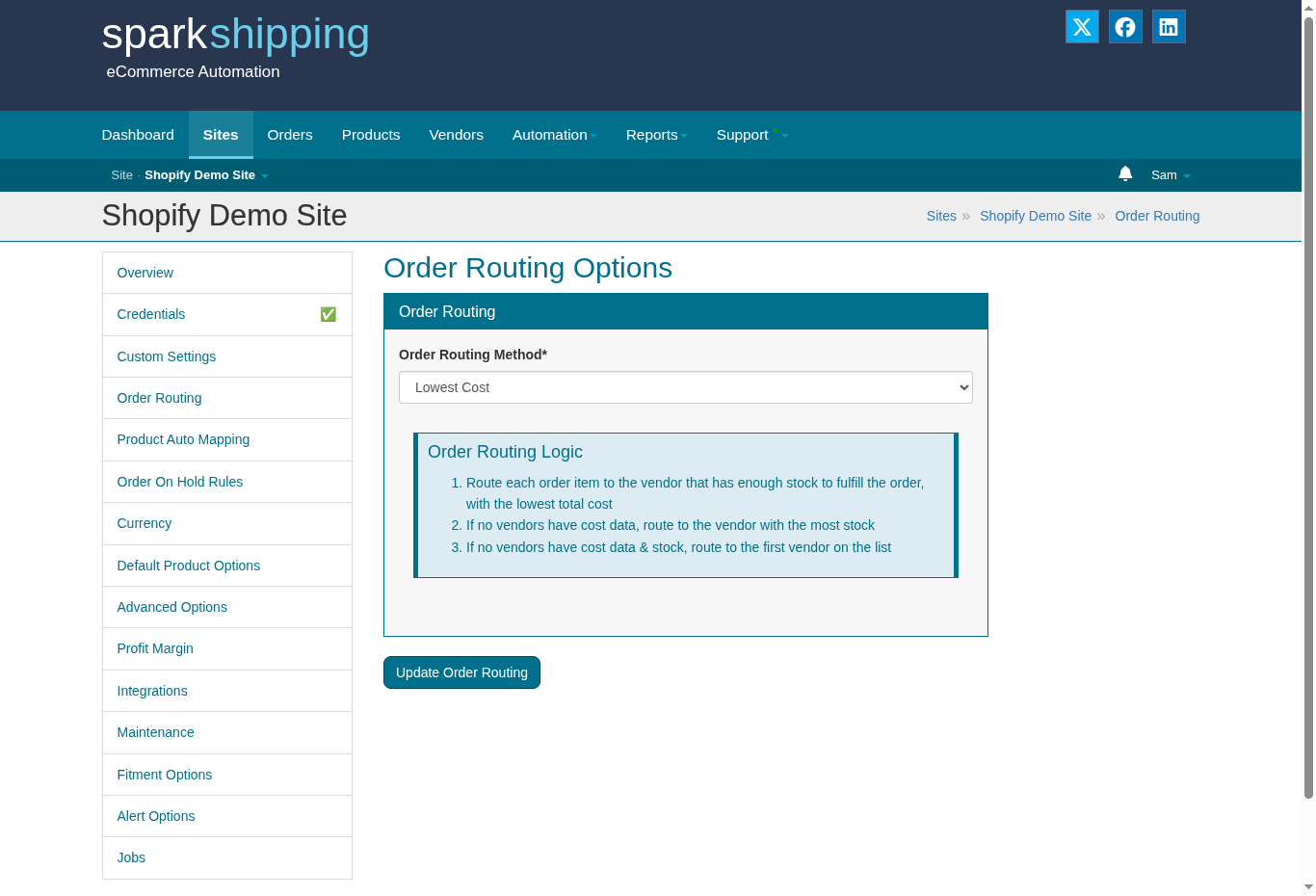
Sites > your Shopify site > Order Routing. Lowest Cost suits a store that sells only Turn14.
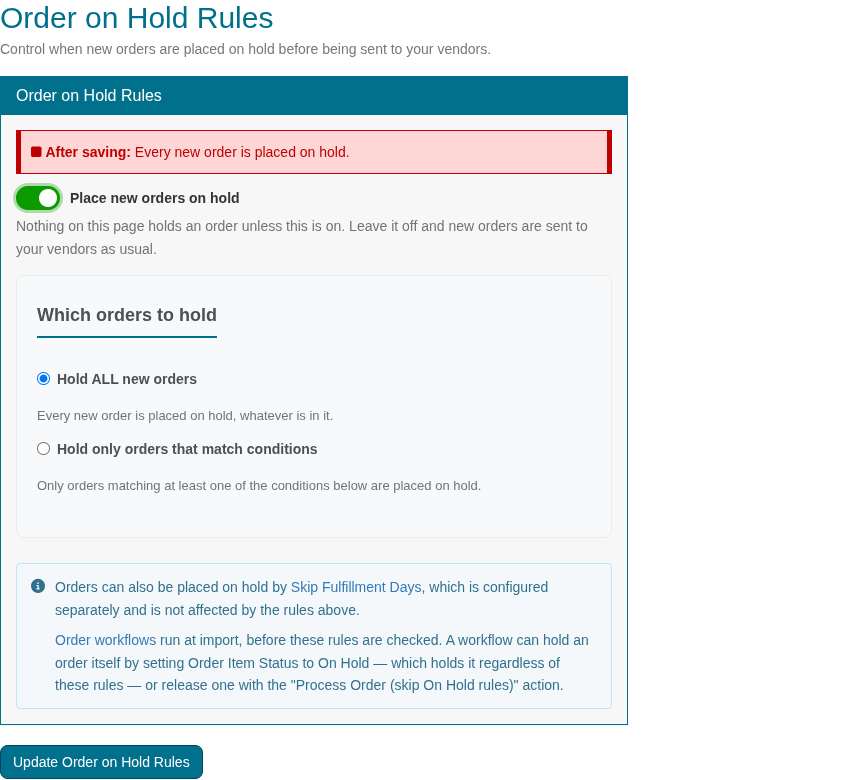
Order On Hold Rules: hold all new orders until Turn14 approves your test order.
Important: until you finish Step 10, select Hold ALL new orders. While the environment is set to testing, an order that goes to Turn14 does not ship. This rule holds orders for every vendor on your site, so process orders for your other vendors by hand until then. Without hold rules, each new Shopify order goes to Turn14 automatically. To process a held order, open it under Orders and click Process. See Place Orders On-Hold and Process them On-Demand.
Step 9: Add Turn14 products to Shopify
The Spark Shipping Product Catalog holds the full Turn14 catalog. It uses titles, descriptions and the highest-resolution photos available from the SEMA Data Co-Op. You pick the products, and Spark Shipping creates them in Shopify.
First, set your Shopify product defaults. Go to Sites, open your Shopify site, then click Default Product Options:
- Product Draft Mode lets you review products in Spark Shipping before they go to Shopify. Or select Set product status to "draft" to review them in Shopify.
- Default Product Collections and Default Product Type set where new products go in Shopify.
- To show Year/Make/Model fitment, add Turn14 fitment data to the Shopify product description, metafields or tags. See How do I add YMM/Fitment data to my products?
Then add products from the catalog:
- Go to Vendors > Turn14 > Product Catalog.
- Filter the catalog. Choose one or more Brand(s). You can also filter by Stock, MAP, Cost, Weight, CARB Approved, LTL Freight, Prop 65 and Parts Type (Automotive or Powersports).
- Under Hide Products, hide items you do not want, for example Missing Photos, Out of Stock, Clearance or Special Order. On Site hides products already in your store.
- In the Add To Site box, choose the Identifier that becomes your Shopify SKU. Optional: choose a Push to Manual Collection, a Product Template (Growth and Premium plans), and AI Product Data for new titles and descriptions (unlimited on Growth and Premium; other plans use monthly AI credits).
- Select the products, then click Add To Site. You can add up to 1,000 products at a time.
- Spark Shipping sends the queued products to Shopify about every 20 minutes. Each row shows Added to Site when it is done.
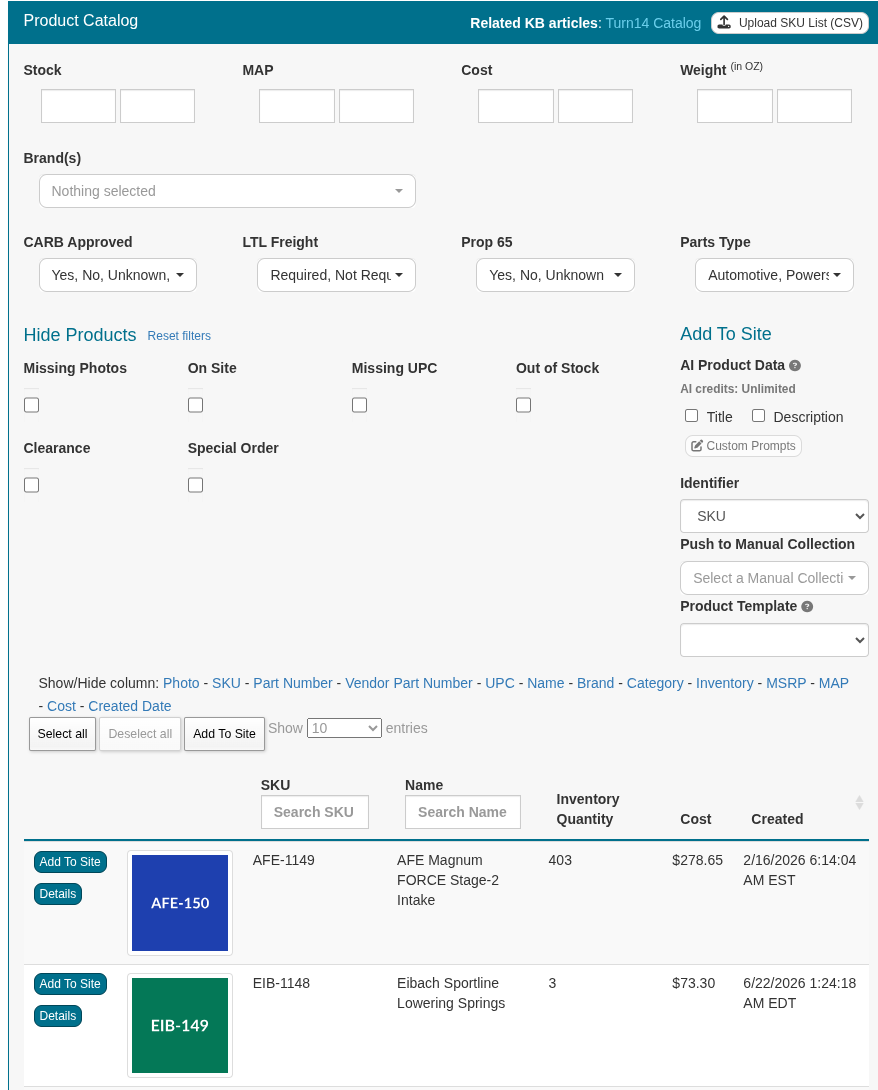
Vendors > Turn14 > Product Catalog: filter, then click Add To Site. (Sample data shown.)
Each new Shopify product gets its title, description, brand (as the Shopify vendor), images, product type, tags, SKU, barcode, weight, price and stock.
Tip: Add one brand at a time. Check a few products in Shopify before you add the next brand. See How can I push products from the product catalog to my website?
Already sell Turn14 products in Shopify? Map them instead
If your store already has Turn14 products, connect them to Turn14 SKUs. Do not add them again. Products that you add from the Product Catalog are mapped for you.
- Automatic matching: go to Automation > Mapping Opportunities. Choose your Matching Settings, such as Exact UPC or Exact Brand & Part Number. Click Update & Find Mapping Opportunities, then accept the matches. See Mapping Opportunities.
- Bulk mapping by file: download the Turn14 Product ID list from the Turn14 Notes panel. Make a CSV with ProductSku (your Shopify SKU) and VendorSku (the Turn14 Product ID). Go to Vendors > Turn14 > SKU Mapping, choose Basic SKUs, upload the file and click Map Basic SKUs. See Turn14 Bulk SKU Mapping.
Step 10: Send a Turn14 test order, then go live
Turn14 requires a test order before it accepts live orders from Spark Shipping. Do not skip this step. While Turn14 Ordering Environment is set to testing, Turn14 does not ship your orders.
- Make sure Vendors > Turn14 > Credentials > Turn14 Ordering Environment is set to testing.
- Place a test order in your Shopify store for a Turn14 product. Use your own name and address, and a 100% discount code.
- In Spark Shipping, go to Orders and open the order. If it is on hold, click Process. Spark Shipping sends it to Turn14 as a test order.
- Email apisupport@turn14.com with the customer name and the PO number. The PO number is your Shopify order number, unless you selected Send Orders using Spark Shipping Order ID in the Turn14 Options.
- Wait for Turn14 to confirm that your test order passed and that Spark Shipping can send live orders.
- Go back to Vendors > Turn14 > Credentials. Set Turn14 Ordering Environment to production, then click Test Connection to save the change.
You are now live. New Shopify orders go to Turn14 as real orders. Cancel the test order in Shopify, because Turn14 does not ship it. Go to Sites > your Shopify site > Order On Hold Rules and turn off the Step 8 hold rule. Then open each held order under Orders and click Process. See Send test orders for Turn14.
Step 11: Confirm that Turn14 tracking reaches Shopify
When Turn14 ships an order, Spark Shipping gets the tracking number from Turn14. It creates the fulfillment in Shopify with the carrier, tracking number and tracking link. Shopify then sends the shipping confirmation email to your customer.
To check, open your first live order in Shopify after Turn14 ships it. The order shows as fulfilled, with the Turn14 tracking number.
What syncs between Turn14 and Shopify, and how often
After setup, Spark Shipping runs each sync on a schedule. You do not need to export or import files.
| Data | Direction | How often |
|---|---|---|
| Turn14 catalog (new products, descriptions, photos, fitment) | Turn14 to Spark Shipping | Regular updates, with a full refresh every 7 days |
| New products you add from the Product Catalog | Spark Shipping to Shopify | About every 20 minutes |
| Stock (inventory quantities) | Turn14 to Shopify | Every 15 minutes |
| Your Turn14 dealer pricing and Do Not Sell list | Turn14 to Spark Shipping | Daily |
| Shopify prices | Spark Shipping to Shopify | About every 30 minutes, when Enable Automatic Updates is on |
| New orders | Shopify to Spark Shipping to Turn14 | Every hour; every 15 minutes for busy stores |
| Tracking numbers and fulfillments | Turn14 to Shopify | Several times a day, with final checks each evening |
Stock comes from the four Turn14 warehouses: Hatfield, PA; Arlington, TX; Whiteland, IN; and Reno, NV. Use Inventory Warehouses (Step 5) to count only some of them.
Troubleshooting the Turn14 Shopify connection
Test Connection fails. Spark Shipping shows "Fail! Please check the connection REPORT logs." Check that you copied the whole Client ID and Client Secret, with no spaces. Check that Spark Shipping is selected under Integration Partners in Turn14 and that you saved it (Step 2).
Orders reach Turn14 but do not ship. Check Turn14 Ordering Environment on the Credentials page. If it shows testing, Turn14 treats every order as a test. Finish Step 10, then change it to production.
An order fails with "400 Bad Request" and mentions CARB. The part may need a CARB acknowledgement for a California address. Select CARB Acknowledgement in Vendors > Turn14 > Options, click Update Turn14, then process the order again. To keep these parts out of your store instead, use the CARB Approved filter in the Product Catalog. See Turn14 CARB Acknowledgement.
A product shows 0 stock in Shopify, but Turn14 shows stock. Check your Inventory Warehouses selection, and the Zero out stock options for Clearance, Special Order and Do Not Sell products (Step 5).
Some products have short descriptions or small photos. Brands send their own data to the SEMA Data Co-Op. Spark Shipping pulls all the data and the largest photos that the brand gives. You can turn on AI Product Data when you add products to write new titles and descriptions.
My existing Shopify products do not update. They are not mapped to Turn14 SKUs yet. Map them with Mapping Opportunities or a SKU Mapping file (Step 9).
Still stuck? Send us a support request.
Frequently asked questions
How do I connect Turn14 with Shopify?
Install the Spark Shipping app in Shopify. In the Turn14 Dealer Portal, select Spark Shipping as your Integration Partner. Add Turn14 as a vendor in Spark Shipping and enter your Turn14 Client ID and Client Secret. Add Turn14 products to Shopify from the Spark Shipping Product Catalog. Send one test order to Turn14, then set the Turn14 Ordering Environment to production. Spark Shipping then syncs Turn14 products, stock, prices, orders and tracking with your Shopify store.
Can I dropship Turn14 products on Shopify?
Yes. Spark Shipping sends each Shopify order to Turn14, and Turn14 ships it directly to your customer from its warehouses. Spark Shipping then adds the tracking number to the Shopify order.
Do I need a Turn14 dealer account?
Yes. You need an approved Turn14 dealer account, and a Turn14 administrator must request API production access. Spark Shipping uses your own Turn14 account, so you get your own dealer pricing.
How long does it take to connect Turn14 to Shopify?
Most stores finish the Spark Shipping setup in about 1 day. Going live also waits for Turn14 to approve your test order by email. The Turn14 catalog is shared across Spark Shipping accounts, so most products are ready to add as soon as you connect.
Does it cost extra to connect Turn14 to Shopify with Spark Shipping?
No. Turn14 is a prebuilt Spark Shipping integration, and its setup is free. It counts as one of the vendor integrations in your Spark Shipping plan.
Can I import Turn14 Year/Make/Model fitment into Shopify?
Yes. Turn14 provides fitment data, and Spark Shipping can add it to your Shopify product description, metafields or tags. On plans that include fitment search, you can also filter the Product Catalog by Year, Make and Model. See How do I add YMM/Fitment data to my products?
Does Spark Shipping keep Turn14 stock and prices updated in Shopify?
Yes. Spark Shipping updates Shopify stock from all four Turn14 warehouses, and it can zero out clearance, special order and Do Not Sell items. With automatic price updates on, it recalculates your prices from your Turn14 cost and your markup rules, and it can enforce Turn14 MAP prices.
Do Shopify customers get a shipping email for Turn14 orders?
Yes. Spark Shipping creates the Shopify fulfillment with the Turn14 tracking number, and Shopify sends its shipping confirmation email to the customer.
Can I sell Turn14 products alongside other suppliers?
Yes. Add each supplier as a vendor in Spark Shipping. Order Routing decides which vendor gets each order, for example by lowest cost or by vendor priority.
Does Spark Shipping support Turn14 powersports parts on Shopify?
Yes. The Spark Shipping Product Catalog has a Parts Type filter for Automotive and Powersports products.
What are Turn14 Product IDs in Spark Shipping?
Turn14 uses its own Product IDs as the vendor SKU. They do not show on the Turn14 dashboard. Download the full list from the Turn14 Notes panel on the Turn14 Overview page in Spark Shipping.